All appsScreensFlowsUI elements
PricingGlossary
AllScreensFlowsUI elements

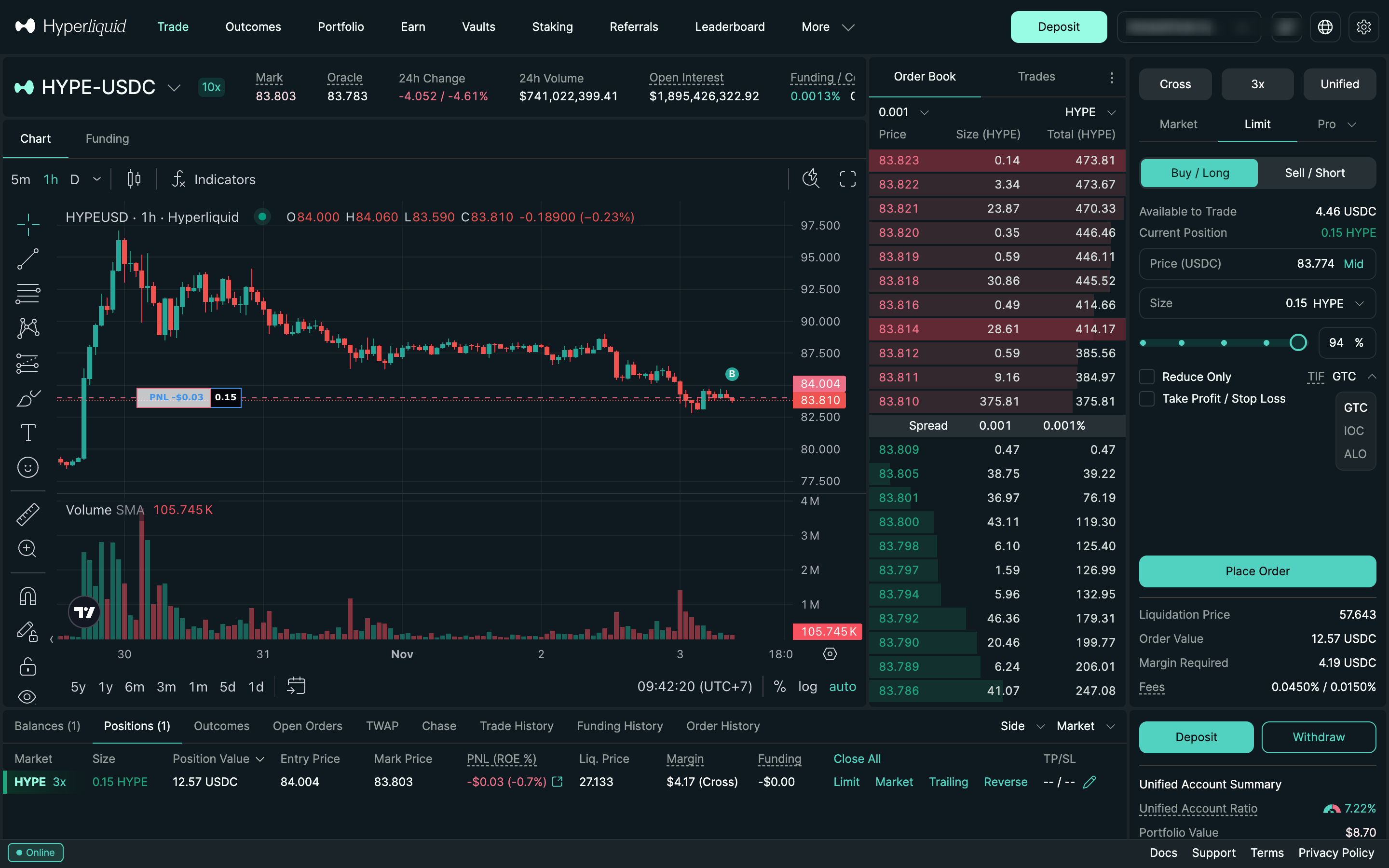
Time in force options in Hyperliquid

Step 3 of 7 in Placing and cancelling a limit orderPlay
Time in force options

Time in force options

Order Ticket

Screen typeOrder Ticket
StateInput
CapturedNov 2026
UI elementsAmount InputDropdown MenuSegmented ControlText Field
In the flowPlacing and cancelling a limit order
SizeDesktop, 2880 by 1800
Open the flowOpen original

Similar screens in other apps

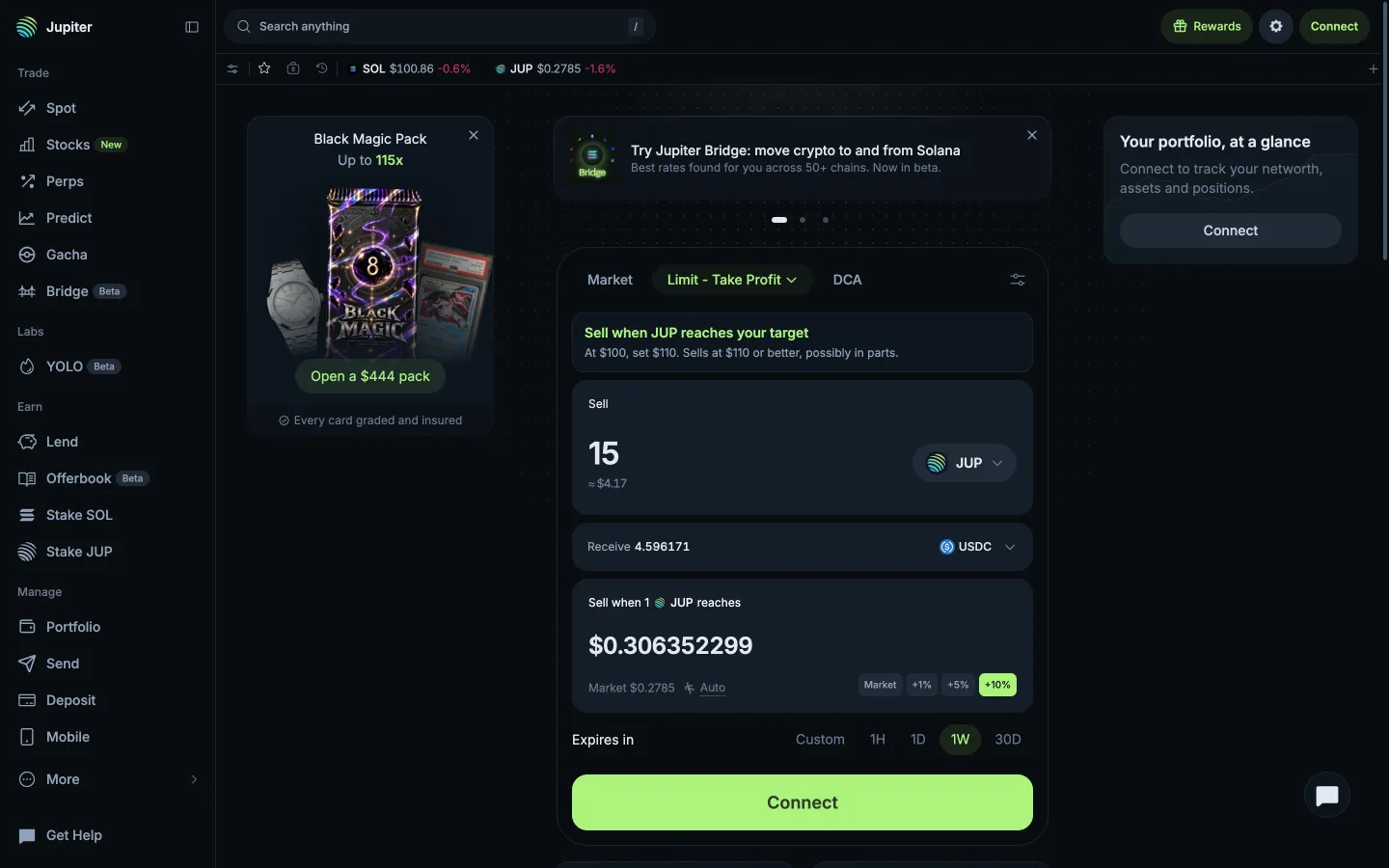
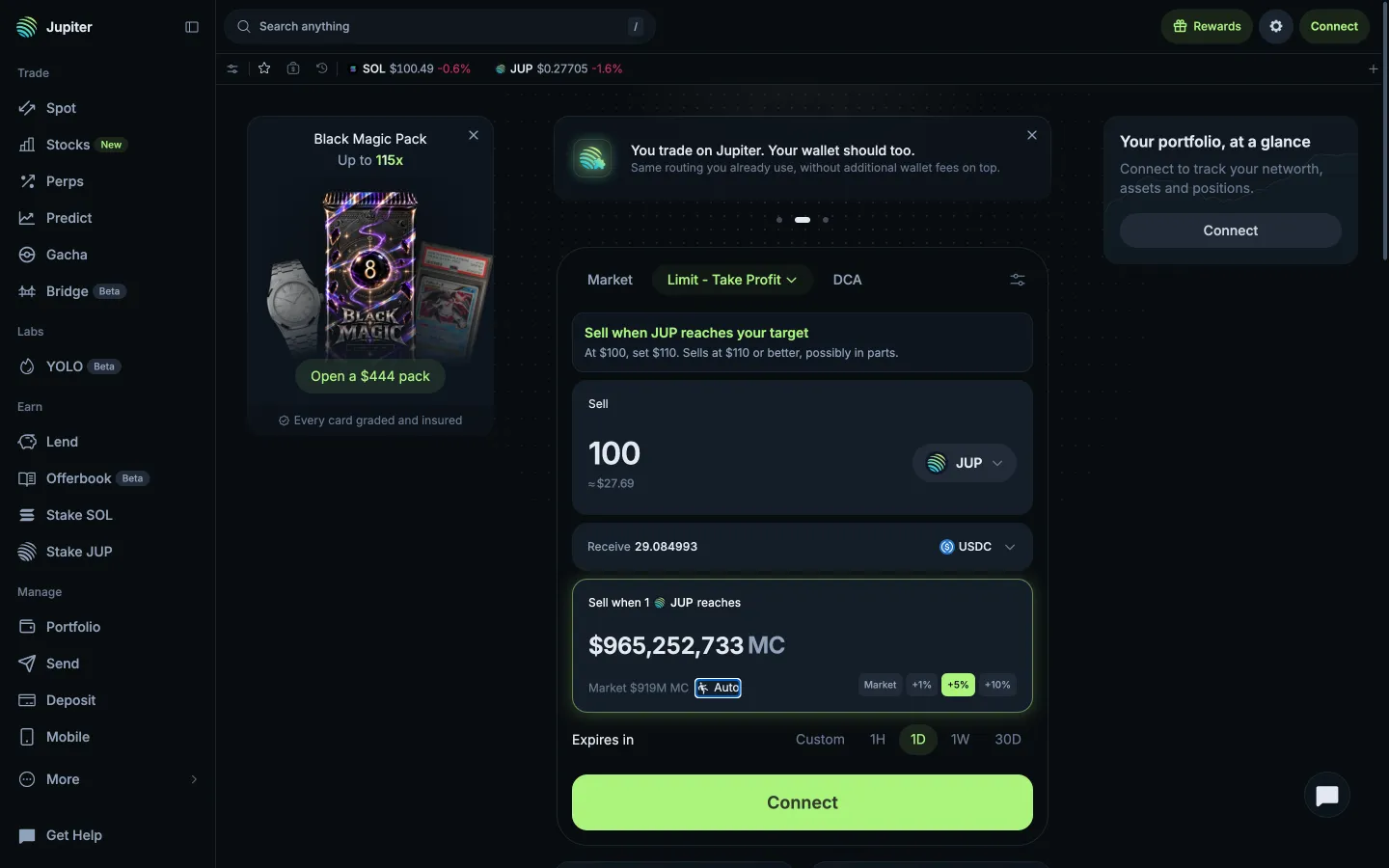
Limit opens on Take Profit with a worked exampleJupiterLimit opens on Take Profit with a worked example
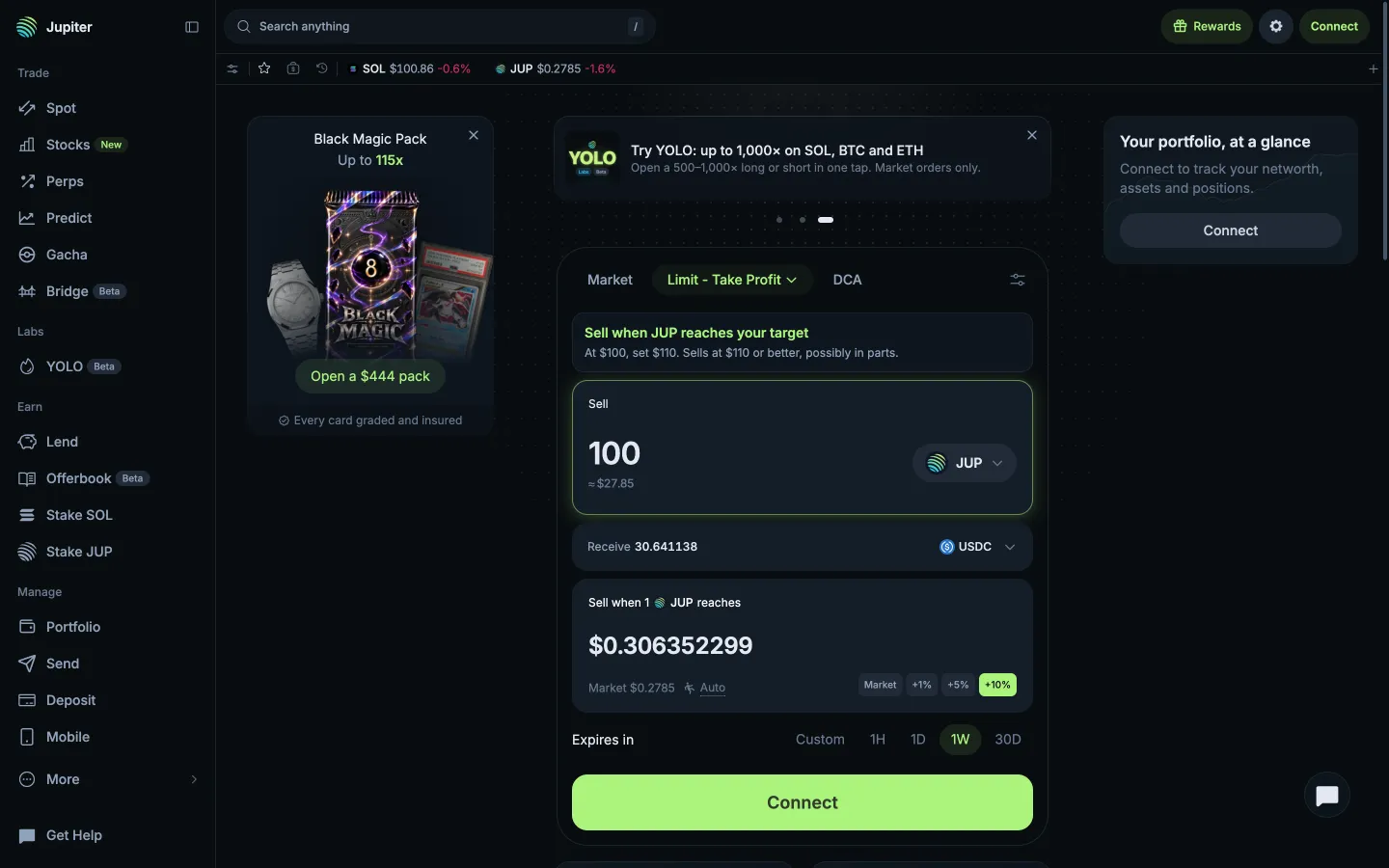
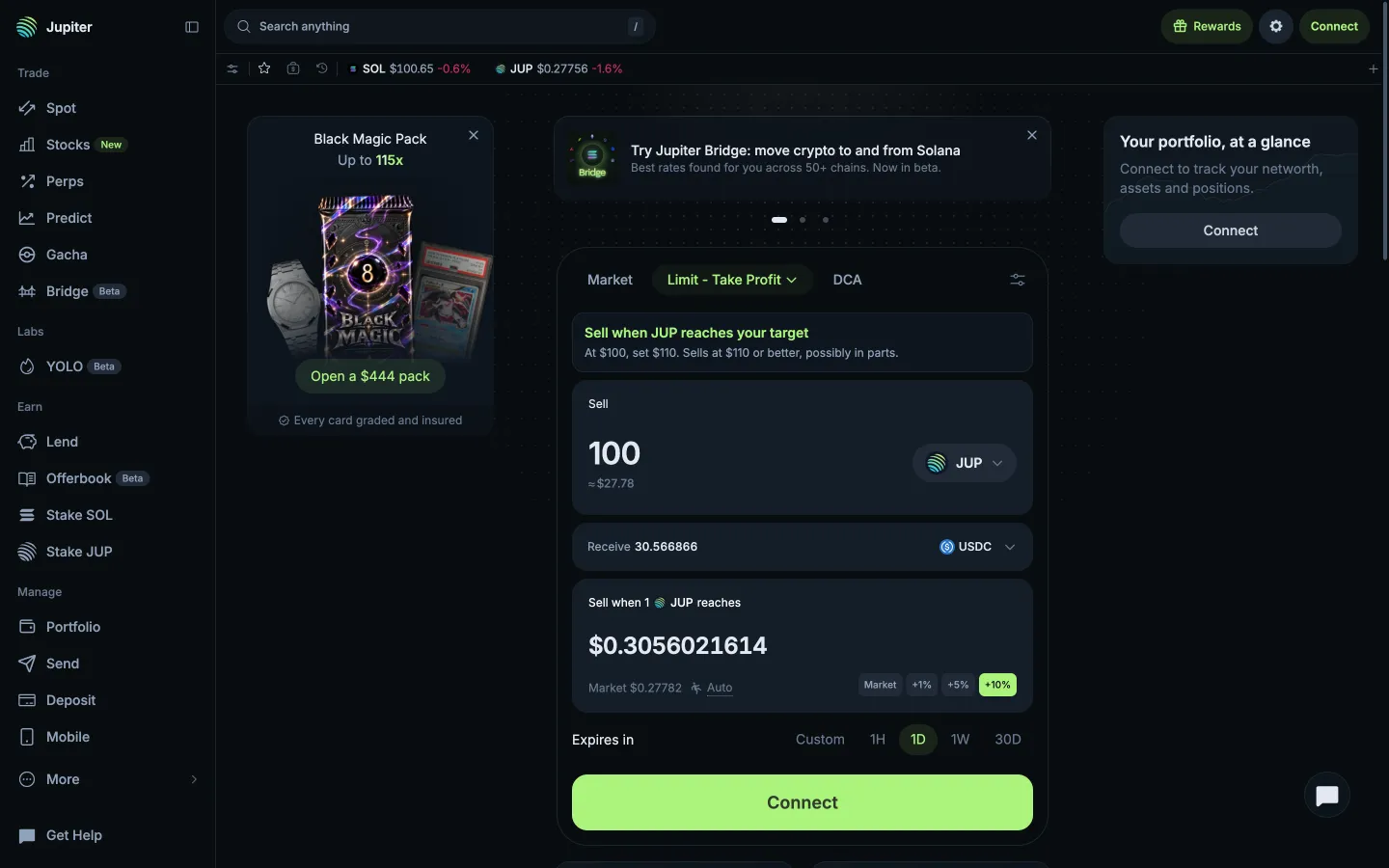
Typed 100 JUP, target prefilled at +10%JupiterTyped 100 JUP, target prefilled at +10%
Take Profit ticketJupiterTake Profit ticket
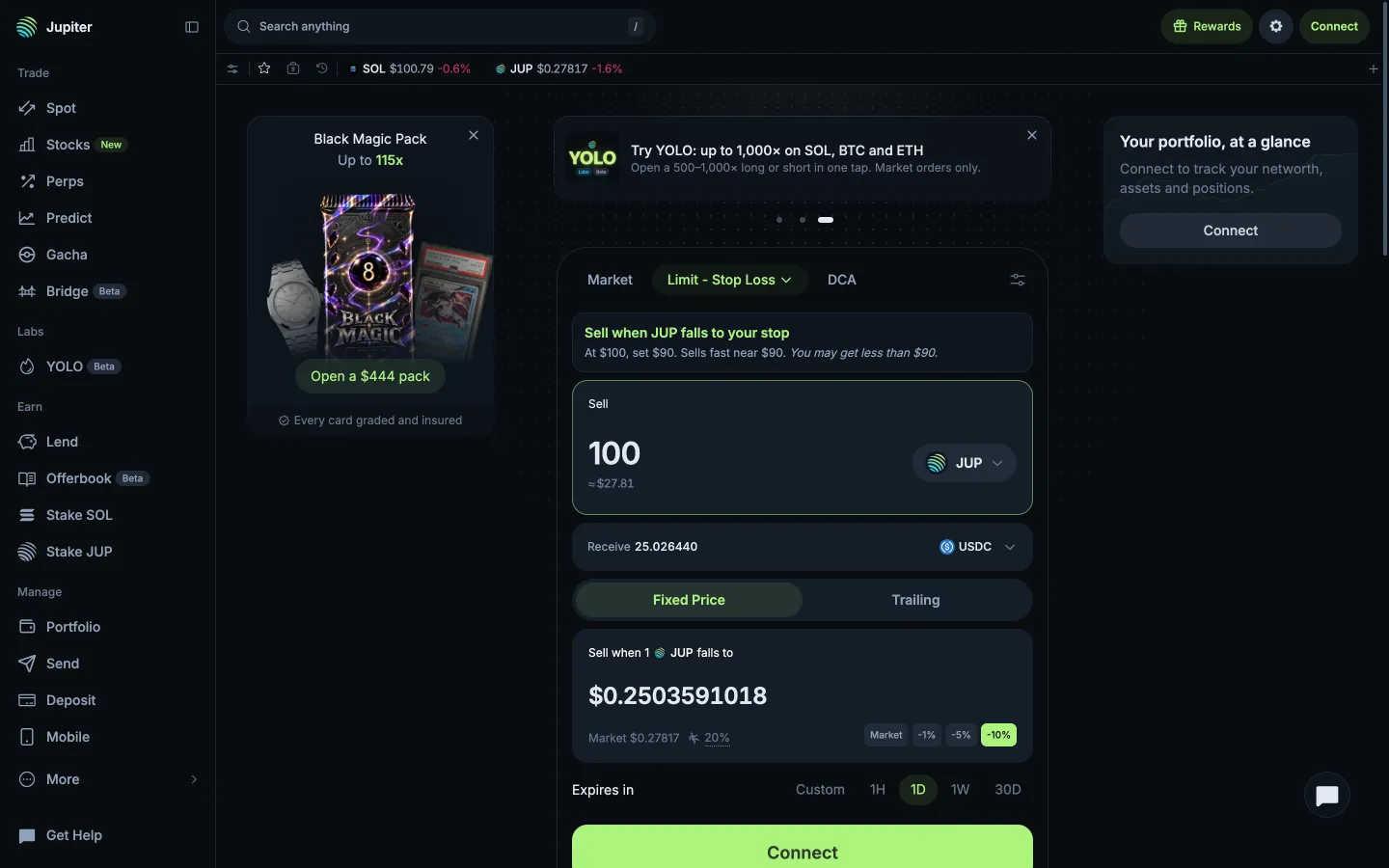
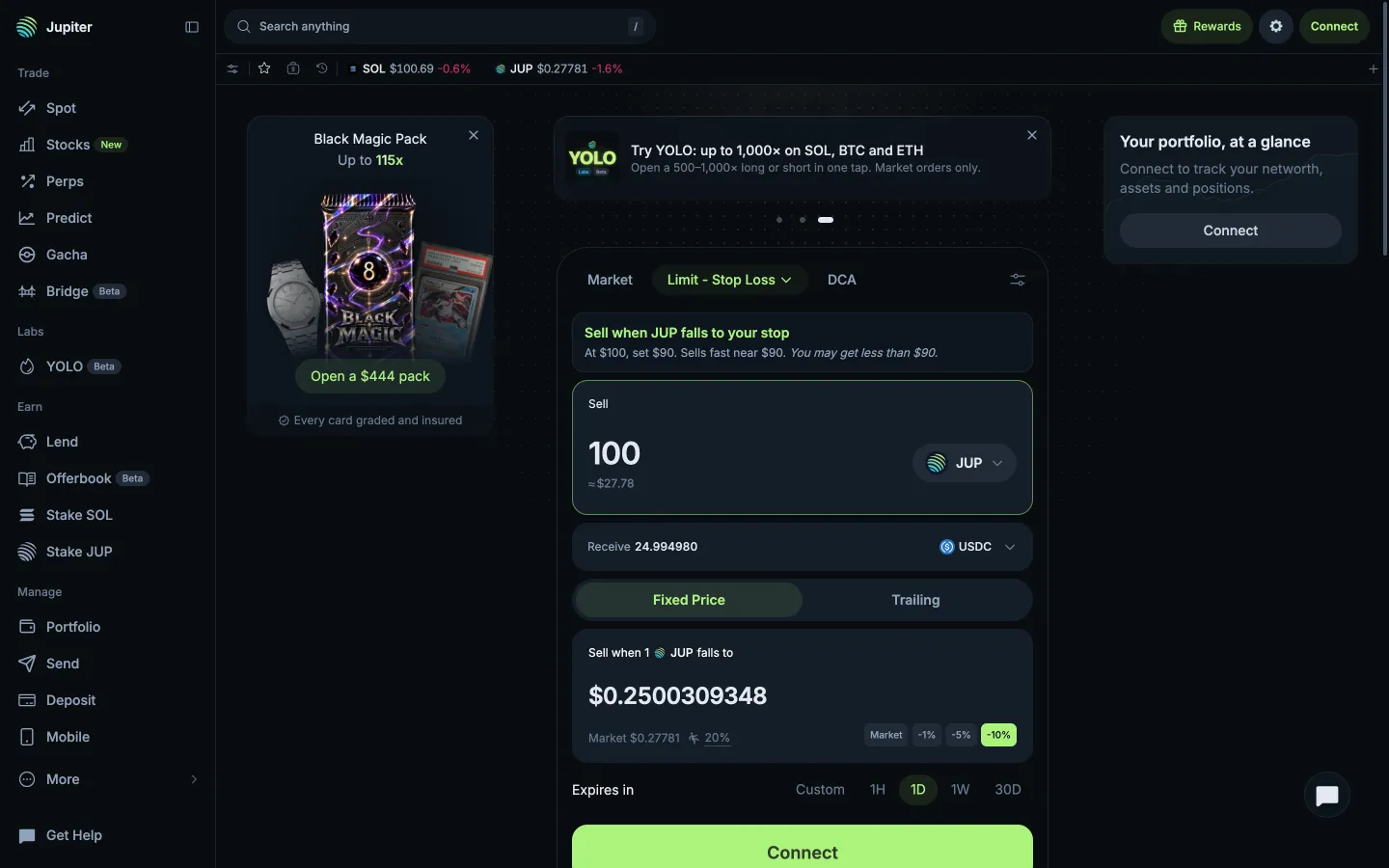
Stop Loss, sells fast near the stopJupiterStop Loss, sells fast near the stop
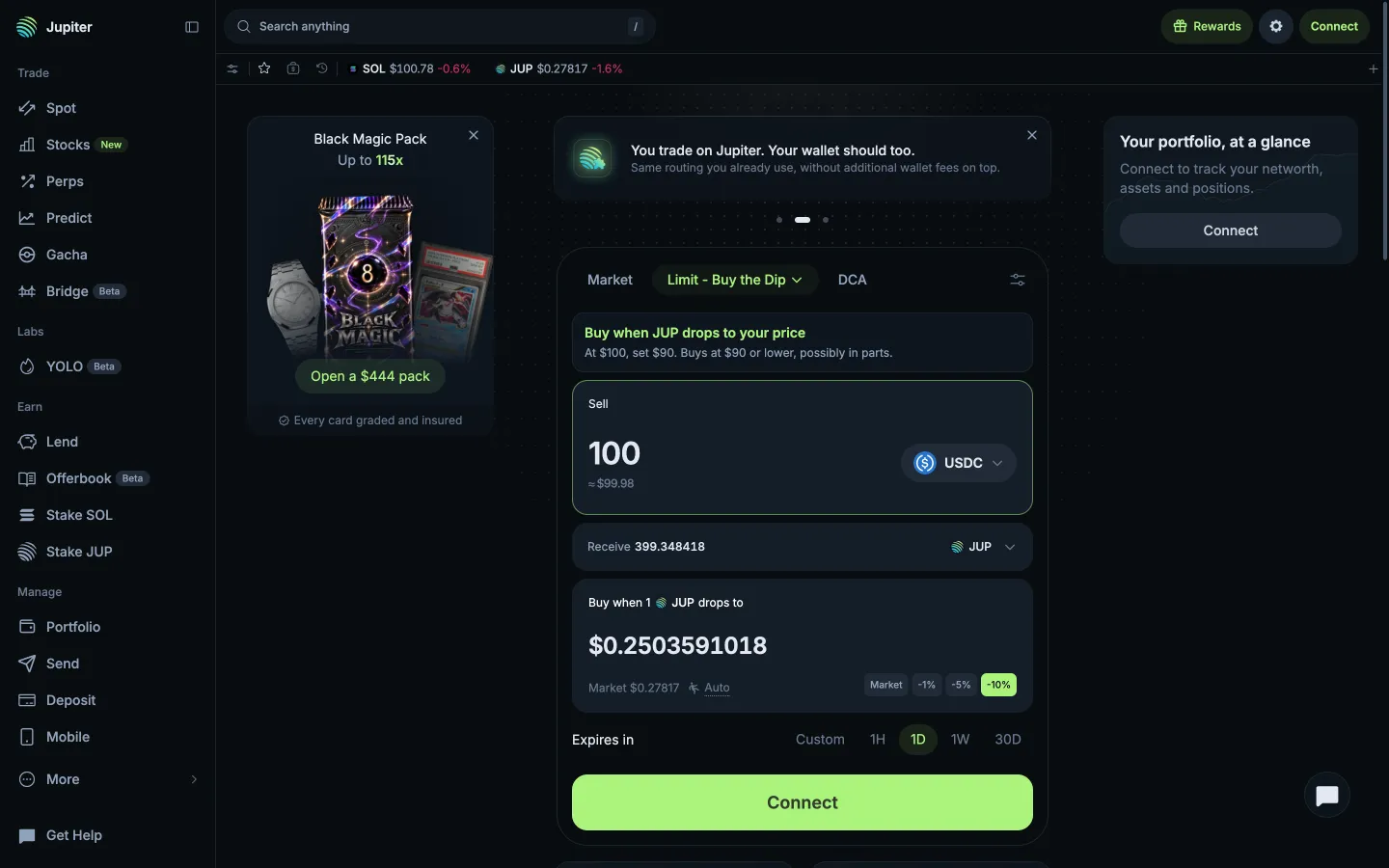
Buy the Dip, buys at the price or lowerJupiterBuy the Dip, buys at the price or lower
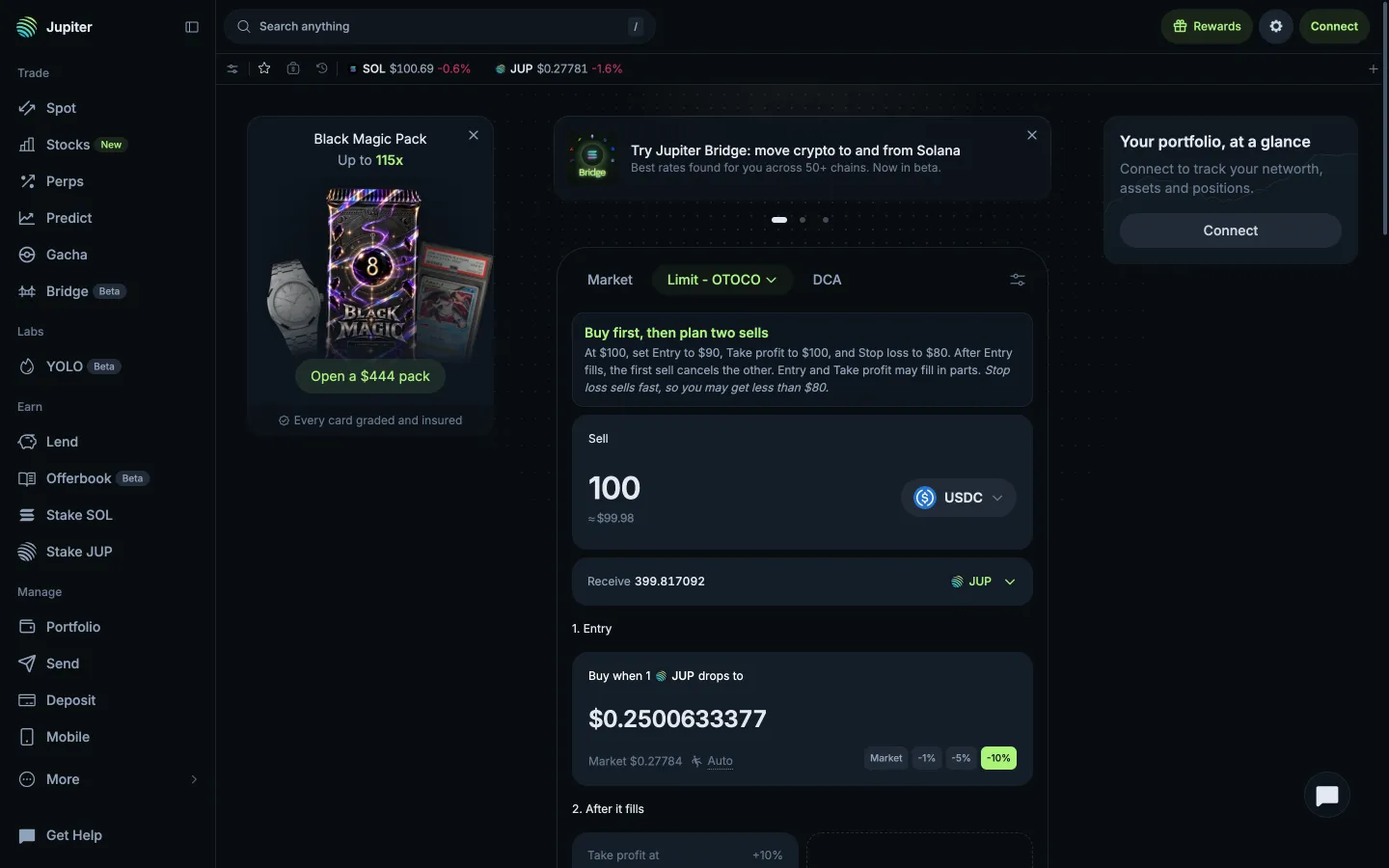
Limit Buy then OCO ticketJupiterLimit Buy then OCO ticket
Stop Loss at a fixed priceJupiterStop Loss at a fixed price
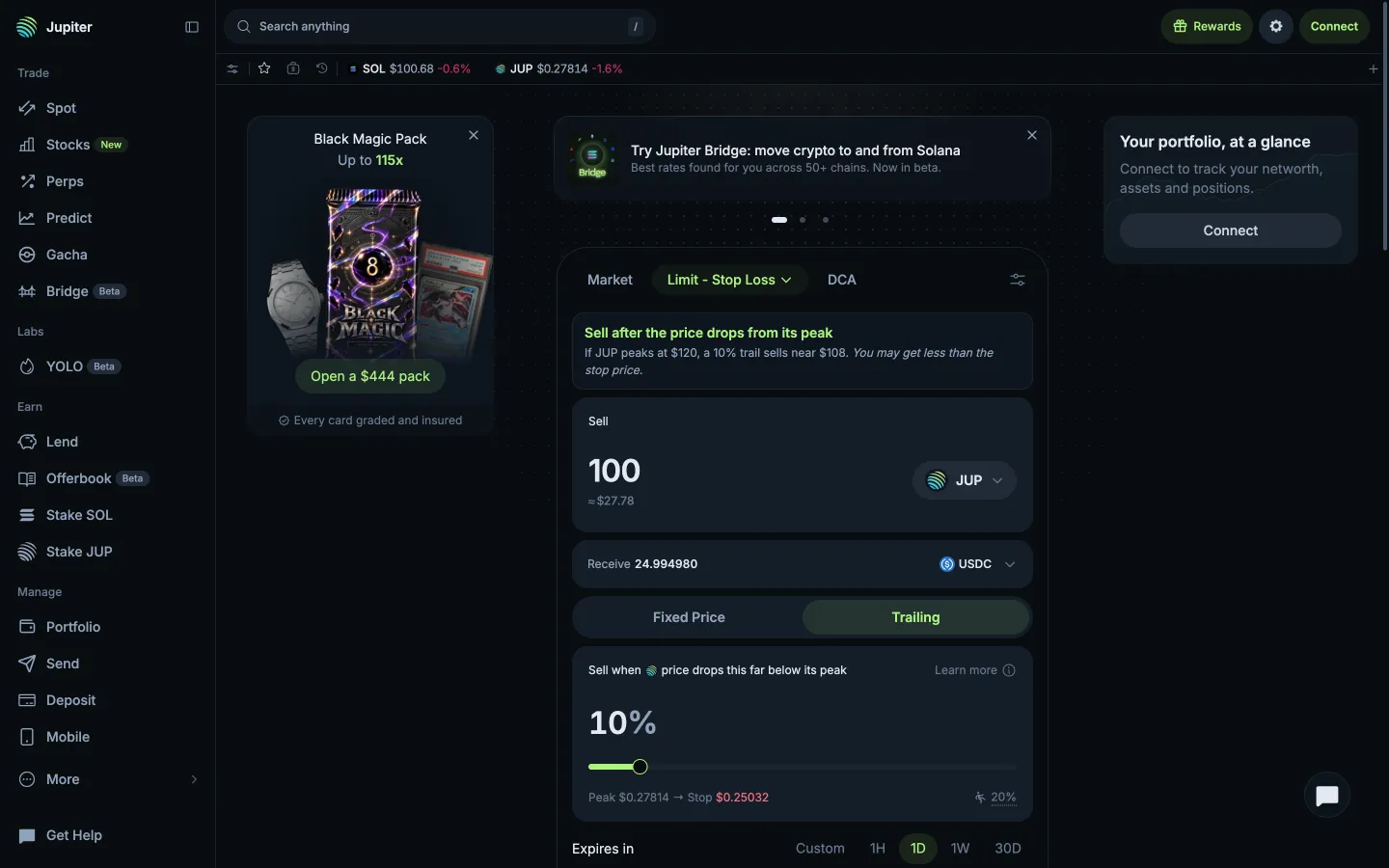
Trailing stop, 10% below the peakJupiterTrailing stop, 10% below the peak
Take Profit target at +10%JupiterTake Profit target at +10%
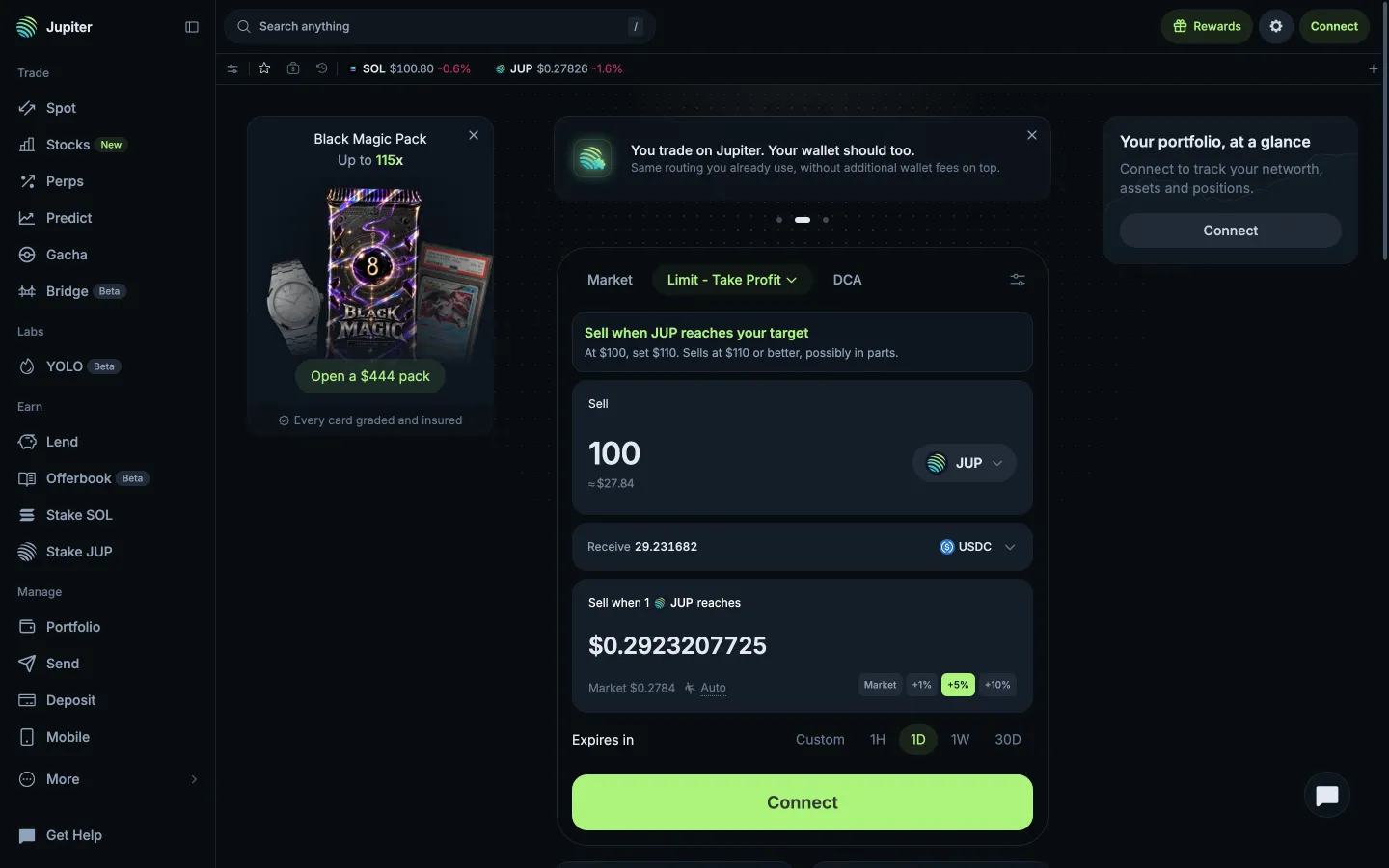
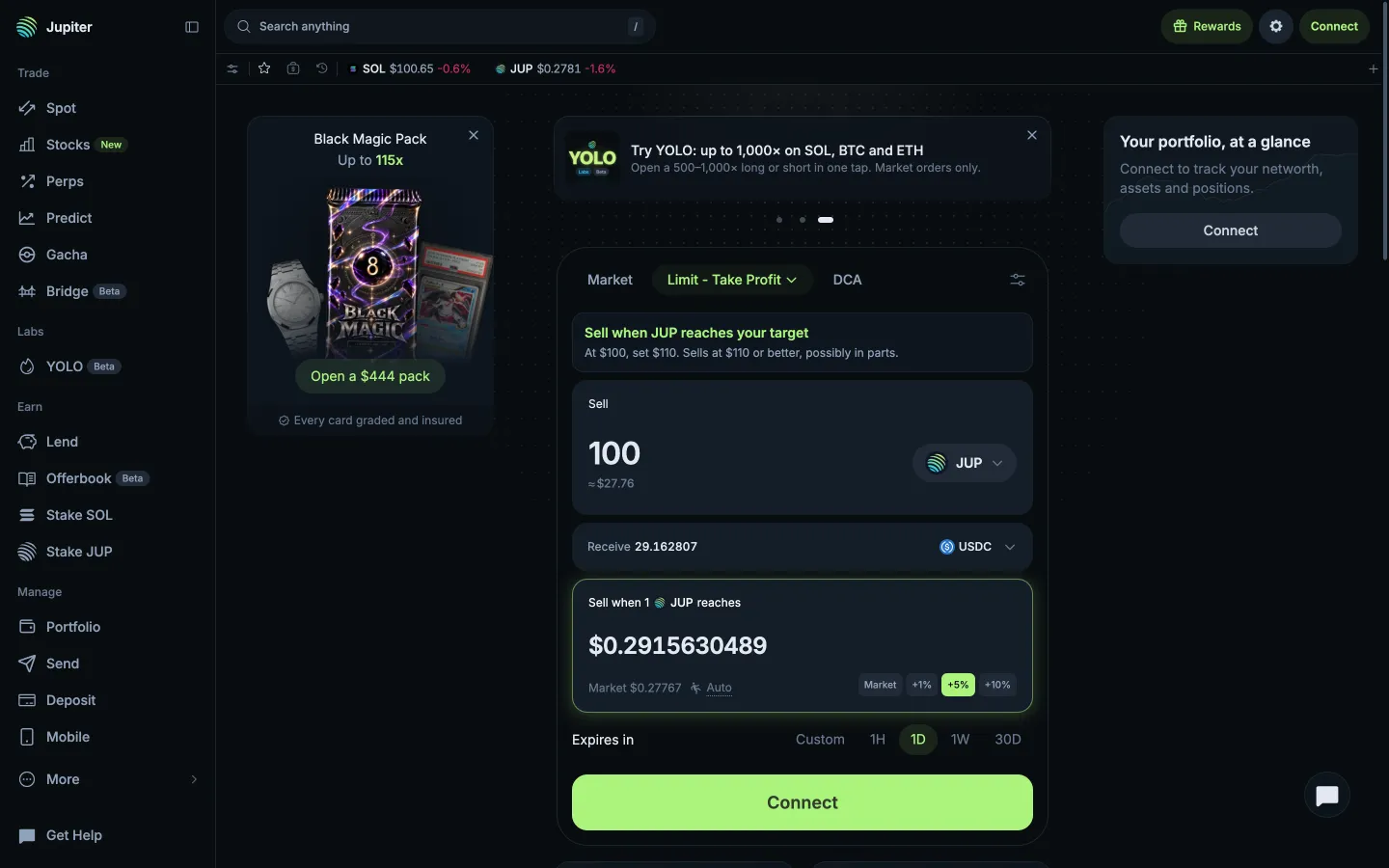
Fixed with +5%, warning goneJupiterFixed with +5%, warning gone
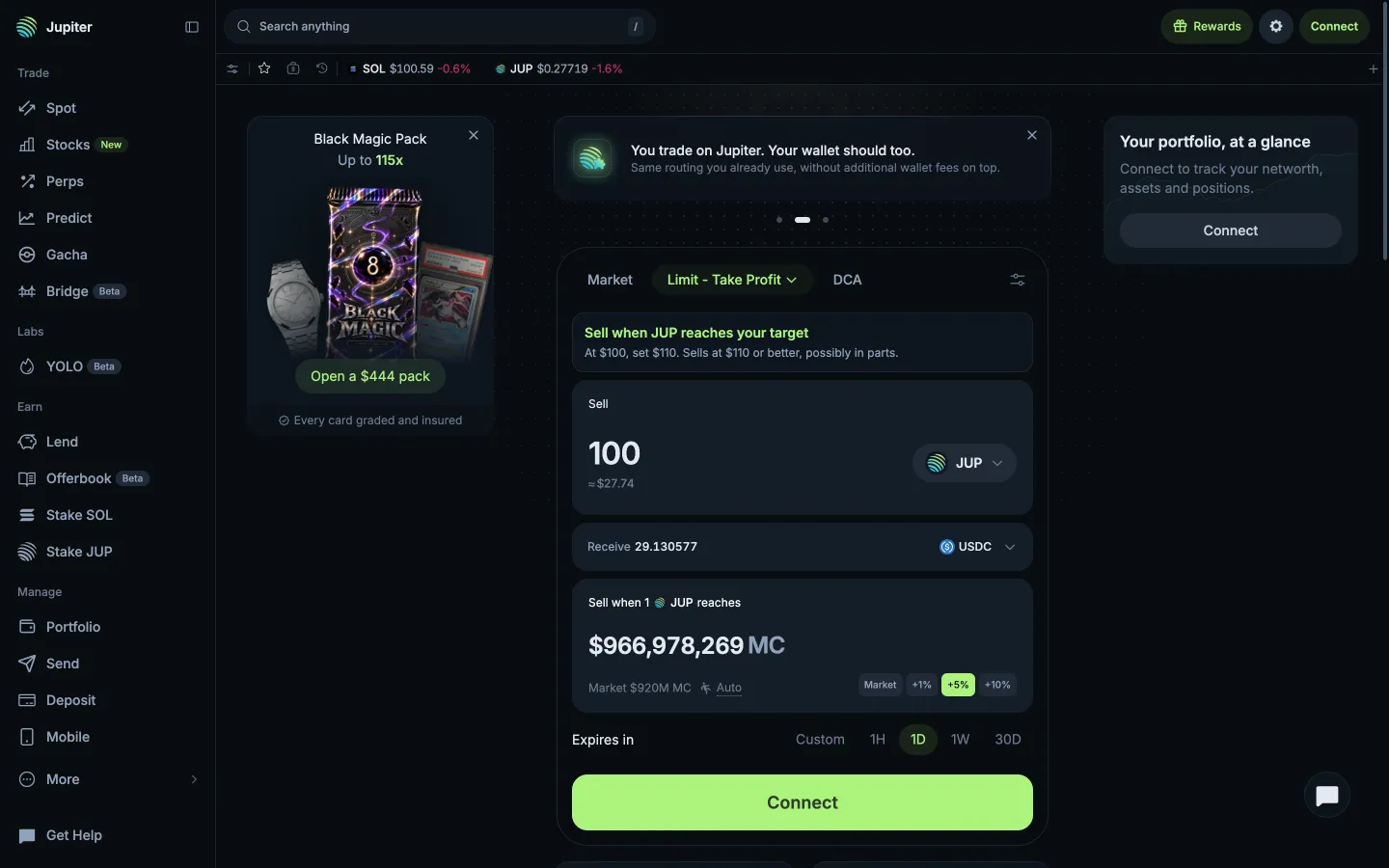
Limit ticket, slippage on AutoJupiterLimit ticket, slippage on Auto
Expiry presets, 1 day chosenJupiterExpiry presets, 1 day chosen

Screens, flows and sites from real crypto and web3 apps.

© 2026 MoonoPrivacyTerms

Apps

  • All apps
  • Screens
  • Flows
  • UI elements

Sites

  • All sites
  • Sections

Learn

  • Glossary

Product

  • Pricing
  • MCPNew

© 2026 MoonoPrivacyTerms